Monday, November 24, 2014

SOAR At Our Fingertips thanks to the CHROMEBOOK, Emily Porter, Librarian, Smyser Elementary School


IMG_20141121_112935.jpg
cb5.JPGThe greatest advantage of the Chromebooks at Smyser is the flexibility we have when conducting research and doing group projects. We started using the web to browse SOAR for topics of particular interest to 3rd grade. Using a graphic organizer that I designed, students took notes from the screen quietly at the tables. I put the timer on for 5 minutes and each person took turns searching for books within their Lexile Range within SOAR and chose the titles based on individual interests. When 5 minutes passed, the students powered down the Chromebooks and placed them in the middle of the table. They take the papers to the shelf location and ACTUALLY find the book they took notes about on SOAR. They are so excited about the connection between what they see on the screen and how it applies to real, physical information retrieval.

IMG_20141121_112956.jpg
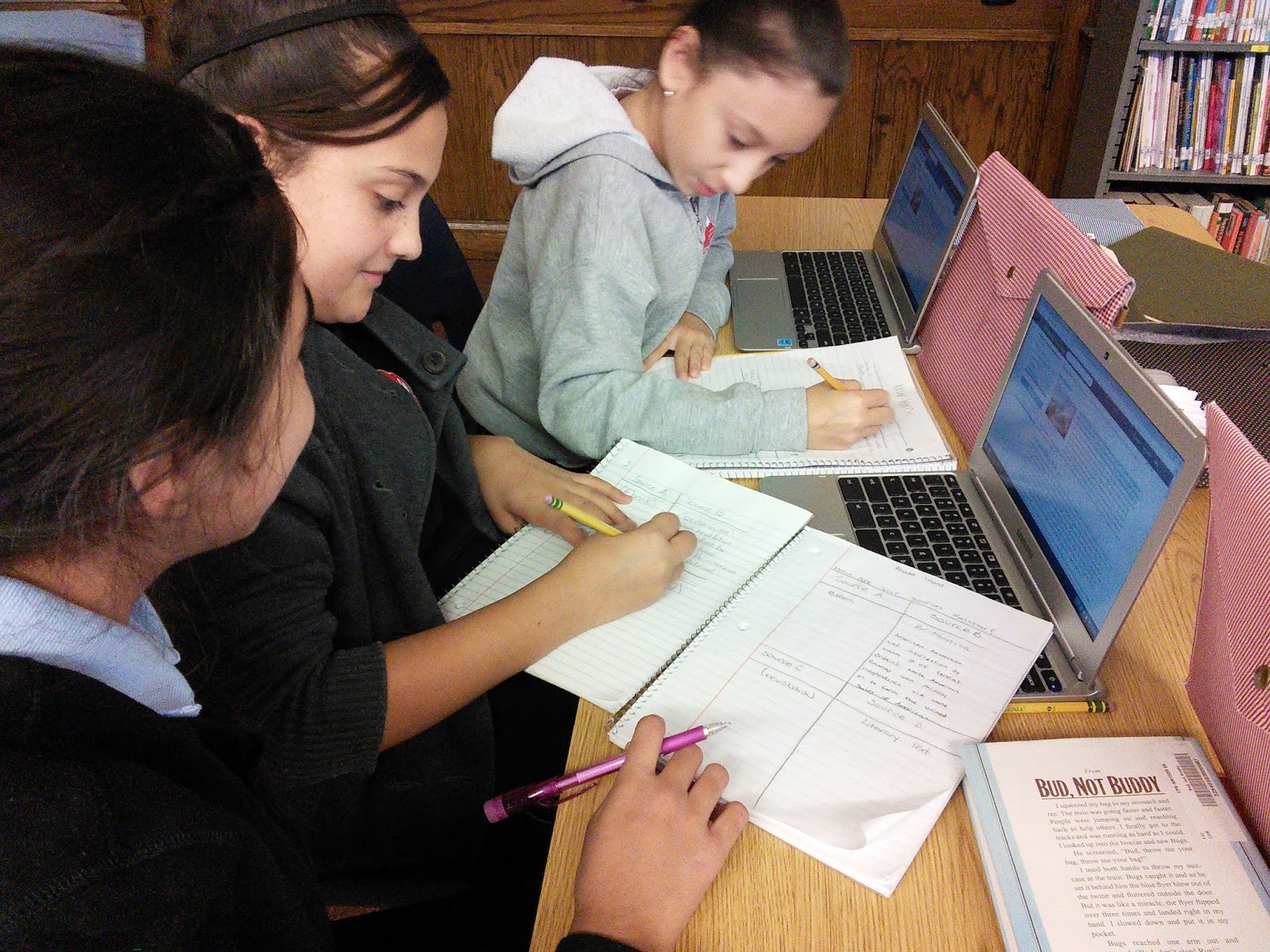
cb10.JPGIn 5th grade classes, we took SOAR further. We have been answering a Big Idea Question all semester, “How are your SOURCES related?” Our 5th graders have studied the American Revolution and its historical figures in their homerooms. During our weekly library class, we find resources using the Chromebooks on SOAR. We have examined Britannica, eBooks, and Newsbank in depth. Students take notes in their journals and compare many different kinds of media - print, primary sources, and web. It has been wonderful to use the Chromebooks to help us access PARCC specific content related to classroom units. Our culminating activity will be a short PARCC-style assessment where the students will be asked to compare two different sources, choose the correct one, and defend their answer choice in a short essay. Pretty cool stuff, huh?!

Chromebooks @ Volta Library! Caryn Mikkelsen, Librarian, Volta Elementary School

The students at Volta have access to technology in the library with laptops, iPads and computers.  Now with the addition of the Chromebooks acquired through the REVITAL grant we have enough devices for 1:1 technology in the library!  Yeah!

I have been using the Chromebooks with all my classes in first grade through eighth.  All of the students browse as guests, then access their Google accounts or websites depending on what we are working on.  The Chromebooks are numbered for easy storage, yet I am not requiring the students to use the same chromebook each time.

Working in collaboration with a fourth grade teacher on a state project, students’ researched a state assigned by their classroom teacher, used Google Apps to create their documents while in the library and shared the document with both the classroom teacher and myself.  This really facilitates collaboration between not only the students but teachers as well.  On this project, students used not only web sources, but CPS Databases, ebooks and library materials for their research.

The Chromebooks have been a great addition to our library learning environment.  They are easy to log in and power up in seconds.  Chromebooks have a long battery life and don’t need to be charged every day.  Students are engaged and working collaboratively!

New Outlook, Rosalie Buenrostro, Librarian, Taylor Elementary School

My name is Rosalie Buenrostro and I am the librarian at Taylor Elementary School.
I have a different perspective on the Chromebooks than I did on the iPads.  Both are wonderful tools for the library but I seem to have a hard time getting started with the Chromebooks.  Part of the reason is I am at a different school this year and the technology advancement is not the same as my last school.  

My student’s did not know what a Chromebook might be, so we discussed it and compared the Chromebook to an iPad.  We created rules for the use of the Chromebooks and each student created a contract and signed it before they were allowed to touch our Chromebooks.

My new students have used a Dell or an iPad but have never had access to a Chromebook.  I recommend you start off with something they can grasp easily so they can get comfortable with using the technology and build their confidence.
I chose to start by introducing them to SOAR through www.CPS.edu/library as they had no knowledge that CPS has so many wonderful tools at their fingertips.  I’ll save this discussion for another time.

The biggest problem I have at this time is I no longer have access to a charging cart.  I had to become innovative as most of us teachers do.  The picture displayed is what I came up with.  I will try to rectify this problem later but at this time it is more important to get Taylor School children using the technology, specifically the Chromebooks.


Partners in Technology, Juan Fernandez-Saines, Librarian, Pickard Elementary School


The excitement had been building up for many weeks.  Whenever they had a chance to, Pickard school students would ask the librarian, Mr. Fernandez, “When are the Chromebooks going to come?” In anticipation, and to prepare them for their arrival the students watched two short videos that introduced the use of the Chromebooks.  Once the devices arrived, the students eagerly explored all the capabilities of the 19 newly acquired machines.

After the dust had settled---so to speak, some students began to ask, “What more can we do?”  When the students learned that Pickard had begun a new initiative to inform parents about the CPS Parent Portal, they asked the librarian to consider making a Student Tech Club.  But this tech club would be different from others.  This tech club would be one where students would share with the school community their newly acquired knowledge.  

On November 6, seven, upper class students willingly volunteer to form this group.  On this date, with the counseling of the librarian and some of their classroom teachers, the students diligently trained on how to use the Parent Portal so that they would in turn teach the parents.  On November 12, during the Parent and Teacher Conference, the students taught over 40 parents how to create an account and use the parent portal.  Each student was assigned to one of 9 Chromebook stations. The students were so patient and welcoming to each of the parents that came.  The students sat with each parent and explained the steps in both English and Spanish.

All of the parents that came expressed great gratitude in receiving such direct help.  One parent commented, “My son attends a high school, and in that high school parents have never received this kind of help like here at Pickard Elementary School.”  The students felt very proud of their work.

Saving to Google Drive, Lindsey Mangurten, Librarian, Lincoln Park High School

I am working with the Honors US History team to create documentaries with chromebooks and ipads for Chicago Metro History Fair. I have done this project for four years but have never used either of these tools to create the documentary. The students will be researching on the chromebooks and finding their images to create the documentary. Once they have compiled all of the photos they will be creating the documentary using the ipads and imovie.


So far I have been in the preparation stages. I am working on an instruction guide for how to save images using the chromebooks and ipads. I have found when using google images and the students right click the image it takes them to the website. I have been instructing the students to click VIEW IMAGE on the right hand side of the picture to open the picture file and not the web file. Once they have the image isolated they can save the image.


This is where things got interesting. My initial thought was so save the image to the chromebook desktop and upload the file into google drive. I was worried this was an unnecessary step and reached out to my fellow grant winners for better suggestions. Eric Currie suggested I add the app Google Drive Extension. This led to me researching and found the google app “Save to Google Drive”.


I was able to install it onto my account and it works great. Now a student can search the image, isolate the image, click ALT right click and save directly to google drive. The only downside I see here is the images will not be directly saved to the folder like they would have been if they were uploaded. I plan on having the kids move the images at the end of each day into the proper folder to help them stay organized. Step one of the project should go smoothly and Step two is taking the images from google drive and populating them into the ipad camera roll so imovie can access all of the pictures.


Troubleshooting

When the students were installing the save to google drive app there were a few complications. I few students did not click the add button and the accept button and the google drive app didn’t install properly. For those students I found the most helpful thing was to uninstall the app restart and reinstall. Once I figured out that step it went a lot smoother. I had about 2 students in each class who had to troubleshoot.

Sunday, November 23, 2014

Getting Started with Chromebooks, Nicole Guevara, Librarian, Washington High School


The George Washington High School library received 19 Chromebooks and they were ready to use ten minutes later. After they were connected to the wireless network, they were numbered, and ready to go. It was really that easy! I quickly decided how I would start using them in the library and began the process.


Washington recently made a huge investment in technology including 90 Chromebooks available for classroom use after teachers complete an agreement form. Teachers have seized the opportunity to bring their lessons to life by utilizing Schoology, podcasts, video creation, and various online programs. More and more students are now being asked to review materials online on their own time coming into the classroom already prepared. Because of the REVITAL grant, the GW library is able to better support this initiative.


The GW library houses 19 Chromebooks that students are able to checkout before and after school as well as during their lunch periods. This guarantees that everyone has equal access to the resources they need to learn while equalizing the classroom. Everyone gets to work at their own pace. Student feedback shows that they enjoy being treated like college students in this way especially since post-secondary education is our mission and goal for every student.


In addition to supporting classroom efforts, the GW Library Council has also begun to use the library Chromebooks. This team of students creates and implements library programming from book displays to evening events for the school community. Students recently used Google Drawing to create flyers for our upcoming Holiday Film Festival. I first created a folder consisting of 5 Google Drawing files. I created an example with the all the information they needed to know to be able to complete their own. The other four Google Drawings were each titled with a specific student’s name. I shared it with all of them so that when they finished I would already own them and easily be able to make copies to display. So far Chromebooks for educational use has been a smooth and exciting process.

Chromebook Management and Its Challenge, Jean Scheda, Librarian, Westinghouse High School


I was very excited when the long-expected Chromebooks finally arrived. They are petite, simple and easy to use. At the same time, a Technology Media Cart I received from DonorsChoose arrived too. Many thanks to the engineer staff, it took a day for them to get it assembled. I bought two dish drainers and two 9-outlets surge protectors and installed them in the cart. The cost saving Chromebook Mobile Lab is ready. The cart could safely store all the Chromebooks, charge all devices simultaneously and transport them around conveniently.


I have numbered each Chromebook and numbered each slot in the media cart.  Students could check out these devices during their lunch period for class work or personal use; they also use the devices during classes for class projects. Teachers and students appreciate chromebooks for its lightweight and enjoy using the devices for online projects.

After I was granted the right to the Chromebook Admin Console, I was eager to try the applications other than the Google Drive Apps so that my teachers could have an abundance of  choices for their class projects. “Don't Judge a Girl by Her Cover,” I would like to borrow one of Ally Carter’s titles to describe what I feel about Chromebooks. To manage a group of Chromebooks was not an easy process. Following online instructions could be a challenge at the beginning due to the numerous options. After several trials and errors, with the support and encouragement from Ms. Colleen, all the preinstalled Apps finally appeared in students’ accounts.  
 
Another issue I want to mention is that I have experienced battery charging problems with three Chromebooks; I am pleased all the issues were resolved in a timely manner. Hopefully, there will be no more battery issues in the near future.