Sunday, November 23, 2014

Sabin Students Conquering Chromebooks! By Meghan Gabler, Librarian, Sabin Magnet Elementary


Here at Sabin, our students are learning to become fond followers of all things Google. I compare this fascination and resounding excitement very similarly to the arrival of our iPad’s last year. The arrival of the Chromebooks caused mixed feelings at first. There were students disappointed because a Chromebook is not an iPad. There were students that were nervous because they had never heard of or seen a Chromebook before. There were students thrilled to be learning about and working with a new piece of technology. I am happy to report most of the students have all transferred their original feelings to the latter, now all excited to be taking on this new technology. The fears have subsided and they are slowly becoming experts in their own way.


I began with a very overdramatized enactment of how to and how not to handle and use the Chromebooks. I am happy to report there have been no incidencts with mistreatment or mishandling. Even better, in most of my classes where we use the Chromebooks there are a few self appointed students who make sure all of the devices are returned to the cart at the end of their class session. It has been wonderful.


As of now the classes that are getting the most experience with the Chromebooks are my fifth, sixth, seventh and eighth graders. I see all seventh and eighth graders together every morning and all fifth and sixth graders together every afternoon.  This results in very large classes with more students than Chromebooks but I have made it work. Luckily because of the other technology in my classroom and the variety of educational paid applications/websites that our school provides, I can work with the classes in two large groups. With that allowance, I have paired students together so they can work and bounce ideas off of each other through every assignment and project that we have.


Our current project for the second quarter possibly leading into the third is just beginning. Students are going to work on the High School Research project that was shared with all CPS Librarians at the start of the school year 2013/2014. It is an amazingly detailed, thorough and outlined project that includes both research and presentation of findings. Students have started with light research to choose a few high schools they are willing to research. As we move on they will be working simultaneously via a shared google document to collect answers to questions, images and citations of their findings via the Easybib add-on within google docs. It is a great project, I feel, because the students are at the age where high school is fast approaching and exposure to the variety of high schools that are offered in and around the Chicagoland area will be beneficial to our students.

The Chromebooks and the interactions with Google Apps for Education is encouraging my students to use Google Chrome and Google search engine in general for all of their work. They are finding it easy to use and are more understanding of how it works. As the year progresses my younger students will be using the Chromebooks more for research and other projects themselves. The Google Chrome browser has been a wonderful took for teaching my K and 1st grade students how to search for a website they want using both anchor charts and general knowledge while in the Library Media Center. I am truly excited to see how these projects turn out and see how easily the students are able to conduct their research thanks to the Chromebooks.

Monday, November 17, 2014

Galileo Students: Meet Chromebooks! By Connie Amon, Librarian, Galileo Academy


Google Apps have been an integral part of students' work in the library, and that has been facilitated with the addition of our new REVITAL Chromebooks. Although students quickly adapted to the new device, comparisons to laptops and computers, and questions like, "What IS a Chromebook?" led to discovery/writing assignment in Google Classroom.

But first, we needed organization. Because we also have 14 computers in the library, all students have been assigned a number and letter, for example: 1A, 1B, 2A, 2B, etc. Every other week, As and Bs alternate between Chromebooks and computers. If student 1A uses Chromebook #1 one week, the next week he or she will use Computer #1. This system has helped students remember their number, regardless of the device they are using, and allowed for “fairness” in use.

Modeling a PARCC-like synthesis assignment, students watched a video https://www.youtube.com/ watch?v=TVqe8ieqz10), read an article, and responded to a prompt asking them to select ONE advantage of a Chromebook and write a paragraph providing evidence from both sources. Since 5th-8th grade library classes at Galileo have also been participating in CPS' Google Classroom pilot this year, the assignment was distributed and completed using Google Classroom.

In Classroom, students “turn in” their assignments to the teacher (me!). I can comment, grade their work, and engage in discussion with students regarding their work. While students worked on this initial assignment individually to ensure that each student experienced accessing, creating, completing, and reading and responding to feedback, they are currently working on a shared presentation. The new Chromebooks have allowed students to work both individually and collaboratively while using their own device.

Sunday, June 15, 2014

Tech Support Please!, Regina Berg, Librarian, Brooks High School

This has been an intense year of: try something new, trial and error, and ask questions! I’m learning to let go, go with the flow and most of all rely on the expertise of others (including the fabulous librarians of CPS).

There were some initial problems with our Apple ID and account.  Nathan Campbell, who is a godsend, helped straighten things out and then made arrangements with OTS for Apple downloads during the school day. He stayed with us until the problems were solved. Amazing man.

The Tech Coordinator here at Brooks, Gian-Luca Ferme, has been an incredible support for me. Together we worked through the ID issues, set up our new syncing station and learned the intricacies of the VPP. Whenever I need him to troubleshoot, he is only a text away. Our iPads are now connected to a new printer and the Chromebooks are not far behind.


Then there are my teachers. I couldn’t ask for a more supportive, innovative group. So here’s to you: Ms. David, Mr. Hazzard, Ms. Lufrano, and Ms. Gillick (English), and Ms. Kennedy (Science). You have served willingly, shared graciously, and often with laughter. We have laid the groundwork for our work together next year. Thank you, all!!

Wanted: The Perfect Tool for a Quick and Simple Presentation, Nicole Guevara, Librarian, Washington High School


Washington High School has a specific focus on close text reading and argumentative writing. To support this initiative, our juniors take a College Prep class. In College Prep, students practice researching, close reading, annotating, forming arguments, and presenting. College Prep classes read Persepolis by Marjane Satrapi for the last unit of the year.  As an introduction to the graphic novel, every student completed a webquest about the history and culture of Iran. I worked with two classes. They spent two days on information seeking and two days creating a short 1-2 slide presentation.

When creating presentations, I have found that students spend too much time on formatting instead of content creation. Because of this, I went on the hunt for the perfect presentation tool. I typically instruct students on Google Presentation because every CPS student has a Google@CPS account and it is great for group work. However, the formatting issue comes up every single time. Many students cut and paste and spend too much time on figuring out how to fix the various formats. If that isn’t the case, then it’s trying to find images before the content is even posted.

After asking around and searching online for assistance, I finally chose to use Haiku Deck with the iPads. I like Haiku Deck because formatting is quick, easy, and can be decided by picking from a few themes right when a presentation is started. You can’t change the font or font size. The letters simply get smaller to fit. I also like that it has an image bank built in where students can search using one or two keywords. The app has a quick learning curve. Students actually surprised me by how quickly they began to navigate the app with ease. They felt very comfortable clicking around to get a feel and even began to help each other with questions (always a goal)! Generally, formatting options are limited yet sufficient for a professional looking final product.  

I created a Haiku Deck account for this project, meaning all students used the same username and password to log-in and create their project. This was done so that the teacher and I would be able to view all presentations and also so that students wouldn’t have to create individual accounts. I had the app open on the projection screen so students could follow along with me for the beginning steps. 

In retrospect, there were several things I would have done differently. Since everyone was using the same username and password, it would have been more useful to project that information instead of the app. One class had an exceptionally difficult time getting logged on because of this issue. Also, when students logged in, they saw all of the presentations that had been created under that account. They weren’t properly prepped for this and became a problem when a student accidentally deleted another student’s project. If time allowed, it may have been beneficial for each student to spend the time create a personal account. This could be useful if a teacher plans on using it multiple times a year or if a students would like to use it in multiple classes. I know I will definitely be using it again with my students when they need to create a quick and simple presentation.


Saturday, June 14, 2014

“Just Bring Them Back”” by KC Boyd, Librarian, Phillips High School

During this time of the year I have to scramble to to get my books back from my students.  Last year I stopped charging late fees to encourage my students to bring their books back and not keep them out of fear.   So far, the book return has been going very well this year.


This year I decided to kick up my end of the year book return with something fun.  My students love to create skits and act in front of the camera.  I challenged them to create a PSA about returning library books.  I gave them some basic information and encouraged them to be creative and to influence their peers to return the books in their own voice.   What I appreciate greatly is that my students really understand how challenging it is to get all of my books back at the end of the school year.


As a result of this new approach, I noticed that students began bringing the books back frequently.   ,  students used iPads and a MacBook Pro to shoot and edit the video.  They also included a funny voice over along with two things that I love:  Bob Marley music and cats.  Intrigued?  This video is short, sweet and to the point.  It truly emphasized that my students enjoy reading but are sometimes a little late in returning books.  


The outtakes in the video are hilarious. Emanuel, Briana, Jordan and Cameron did an excellent job with the production of this video.   The students were also really critical about shooting the video and making it just right.  I'm proud of them and they did a great job!  Take a look at this funny presentation.

End-of-Year iPad Projects, Amy Stipp, Librarian, Corkery Elementary School

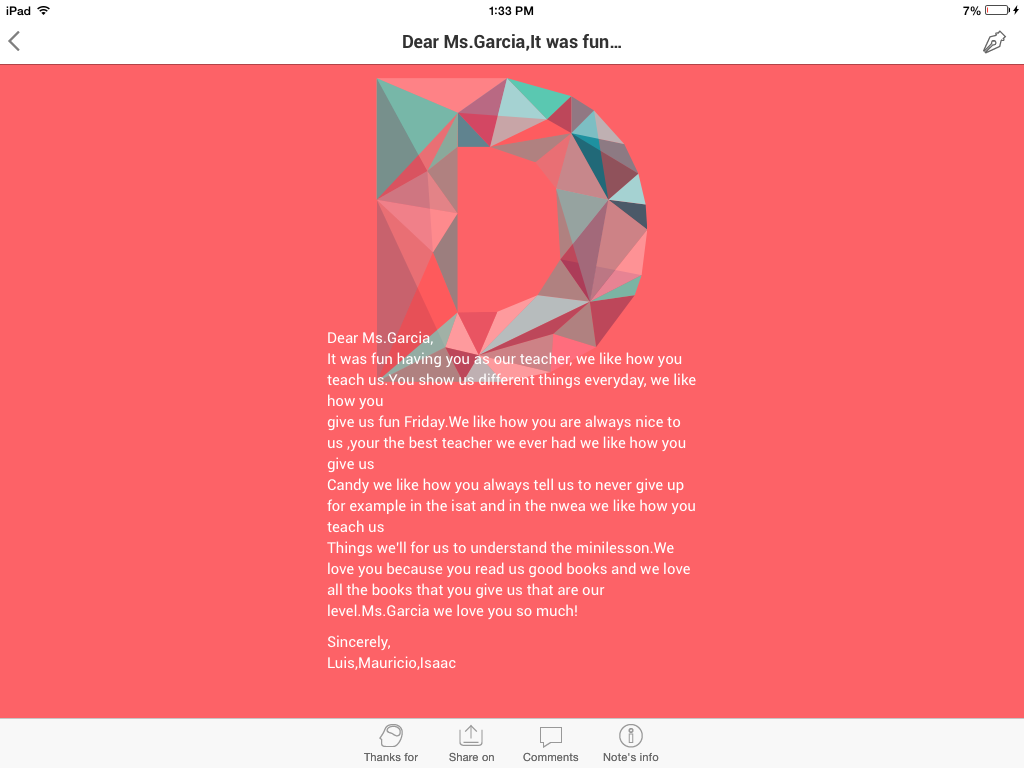
The iPads were certainly great to have for EOY projects!  My favorite project we did was students writing thank you letters and/or poems to their teachers for all their hard work this year.  The students were familiar with using “Notegraphy,” “Haiku Deck,” “Phonto,” and “Word Mover” because they had used those apps for projects throughout the year. It was fun to do a culminating project of gratitude with those apps.  The students were given the option to use any of those familiar apps for their project.  They e-mailed their projects straight to their teacher.  What a delight for their teachers to open up e-mails of carefully designed and worded products from their students about what great teachers they were and how they had impacted their students!

One logistical change I have made with the iPads is instead of having students fill out their cards and place them together in a pocket beside the iPad charging station, they put the sign out card in the slot where the iPad belongs until they return it.  This method is much easier for me to see who has yet to sign out their iPad.  And it makes it easier for students when putting their card back in their iPad pocket.  They merely lift their card from their slot and place it back in their iPad pocket rather than shuffling through the stack of cards to find theirs.  

Colleen Herman was a golden nugget in my purse this month.  She helped me in so many ways.  She helped me get connected with configurator and helped me access my VPP.  She also suggested I use reflector, which allows me to project the image that is on the iPad for all students to see.  

In addition, Colleen connected me to Katherine Hlousek.  Katherine is a fellow librarian who teaches at Zapata, a neighboring school a stone'

s throw away from Corkery.  Katherine reached out to me and so generously came by after school one day this week and walked me through some lessons she has taught and showed me what has been helpful and not helpful to her library program.  She is on her game and her ideas are sharp and her enthusiasm contagious!  I look forward use what she showed me and learn more and grow in my iPad teaching skills.

Friday, June 13, 2014

Bringing Characters to Life Using Chromville and Write About This, by Katherine Hlousek, Emiliano Zapata Academy Librarian

During the fourth quarter, second grade library lessons focused on bringing our characters and stories to life and action with iPads.  Over the course of six classes students worked in teams to design characters using the app Chromville and then write and record an original story using the app Write About This.  This library unit supports and extends the second grade classroom character traits unit and further develops students’ writing, fluency, technology, and creation skills.     
Second graders had an absolute blast using Chromville!  Chromville is a new free augmented reality app that brings characters to 3D life.  Visit the Chromville website to download and print the character pages.  There are six different character options available for download and more character pages will be added in the future.  To allow for greater creativity, there is an option for students to design an original character with the Customizable character page.  Tip - In order for the character page to work with the app, students need to color in the lines and avoid coloring the Chromville village icon in the corner.
Chromville is easy to use.  First open the Chromville app and click play.  Then locate the village icon on the character page and click the corresponding village icon on the iPad.  Next, hold the iPad over the paper to scan the character page; this is similar to scanning a QR code.  Scanning the character page might take a few tries since students need to hold the iPad still for three seconds.  Try putting the character page on the floor or a chair for easier scanning.  When the iPad is lined up with the character page, the iPad screen will turn green and will count down (3, 2, 1).  Then the character will become 3D and will move around, wave, and dance, among other actions.  Students can take a picture of the 3D character using the camera option within the Chromville app.  There is a camera icon and the photo saves to the iPad camera roll.  Using Reflector and AirPlay, second grade students shared their 3D Chromville character photo with the class.

The Chromville characters provided the perfect starting point for students to work collaboratively in teams to create an original story.  Students used an Elements of a Story Storyboard Planning Worksheet to map out their creative story.  During the next class students used the Write About This app to write and record their original story featuring their Chromville characters.  Students took turns in their teams writing and recording the team story.  Lastly, students added a picture of a Chromville character to the story.
At the conclusion of the unit, we had a story celebration!  Students shared their team stories created using the Write About This app.  Second grade students had tons of fun with Chromville and Write About This and are very eager to use Chromville again in third grade!