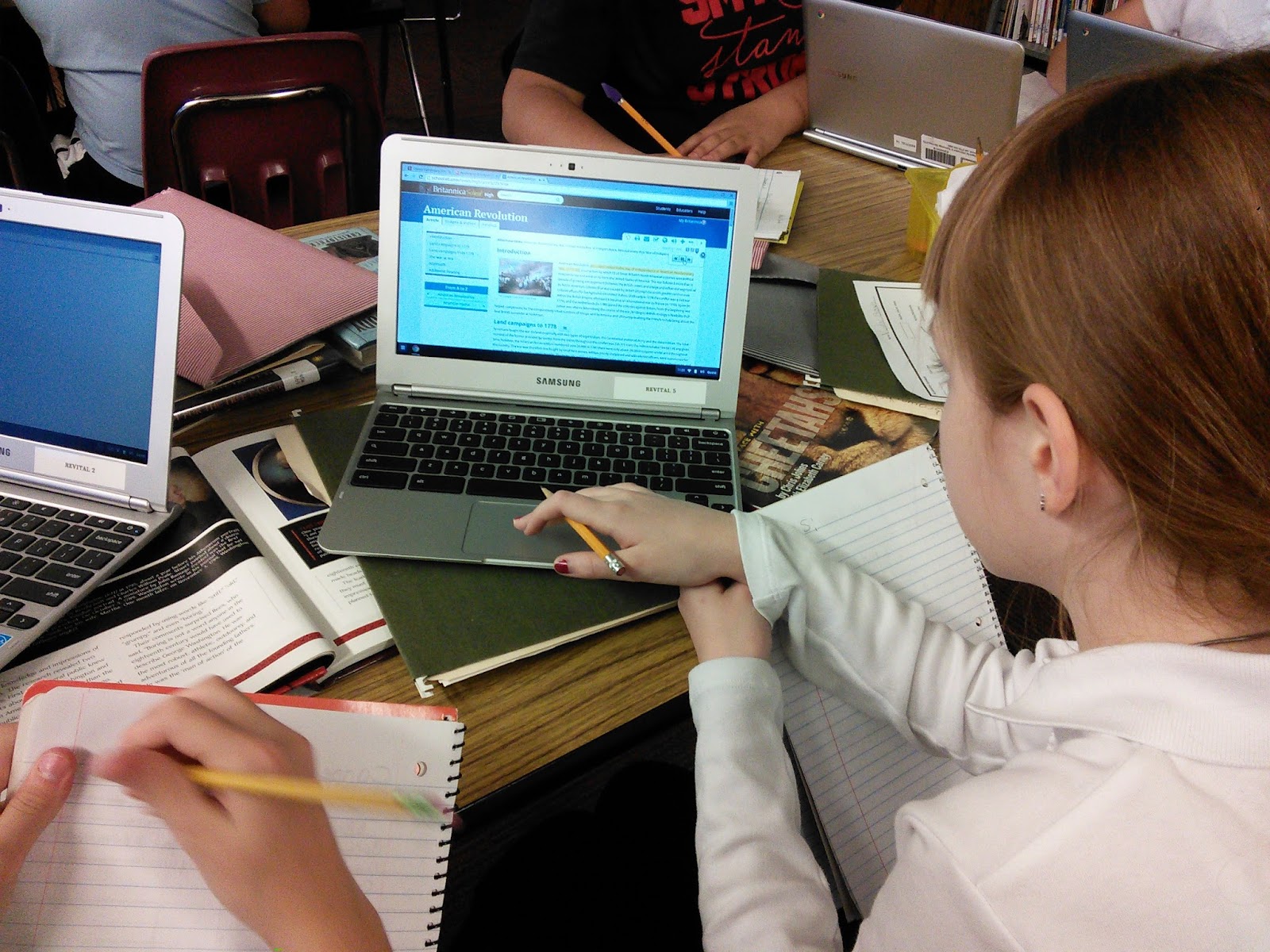
Using Chromebooks in our library has allowed us to practice saving ongoing projects in the Google DRIVE. Each class in grades 4, 5, and 8 have a folder and documents saved in the DRIVE dedicated to artifacts created in library or media class. The flexibility to store photos, documents, and audio clips is beneficial to long term projects. At my school, I am asked to teach in the classrooms during MAP and PARCC testing so that the upper grade classes can rotate through the library’s computer lab in order to take the exams. The Chromebooks and DRIVE make the transition into the classroom seamless because we can continue our library lessons without bringing all of our class materials with us. This shift in my lesson planning wasn’t too difficult. I took materials that I had already created as a Google Doc and shared them with my students through the DRIVE. I found digital activities through PBS Learning Media that could enrich units relating to classroom activities. The Chromebooks allow the classes to connect wirelessly to any internet resource. The greatest advantage to using the DRIVE has been teaching the students to organize their class work in a folder called LIBRARY. A long term goal I have as a teacher is to measure student skill retention using a portfolio model from one academic year to the next. The DRIVE is a terrific place to store student work and help the students learn to self evaluate, review work from previous years, and create new learning activities as apps and GAFE develops. Being able to scaffold student learning from one year to the next is an exciting way to watch the students I teach develop as learners. The Chromebooks make this effortless. In four years, I will be able to measure the impact my teaching has on library learners long term. It will be exciting to look back at all of the library activities we conducted over the years and analyze which ones work and which ones need to be changed - all done with input from students as we examine authentic artifacts that represent six years of being MY teaching on these students.
Monday, May 4, 2015
Smyser Students DRIVE their Chromebooks, Emily Porter, Librarian, Smyser Elementary
Using Chromebooks in our library has allowed us to practice saving ongoing projects in the Google DRIVE. Each class in grades 4, 5, and 8 have a folder and documents saved in the DRIVE dedicated to artifacts created in library or media class. The flexibility to store photos, documents, and audio clips is beneficial to long term projects. At my school, I am asked to teach in the classrooms during MAP and PARCC testing so that the upper grade classes can rotate through the library’s computer lab in order to take the exams. The Chromebooks and DRIVE make the transition into the classroom seamless because we can continue our library lessons without bringing all of our class materials with us. This shift in my lesson planning wasn’t too difficult. I took materials that I had already created as a Google Doc and shared them with my students through the DRIVE. I found digital activities through PBS Learning Media that could enrich units relating to classroom activities. The Chromebooks allow the classes to connect wirelessly to any internet resource. The greatest advantage to using the DRIVE has been teaching the students to organize their class work in a folder called LIBRARY. A long term goal I have as a teacher is to measure student skill retention using a portfolio model from one academic year to the next. The DRIVE is a terrific place to store student work and help the students learn to self evaluate, review work from previous years, and create new learning activities as apps and GAFE develops. Being able to scaffold student learning from one year to the next is an exciting way to watch the students I teach develop as learners. The Chromebooks make this effortless. In four years, I will be able to measure the impact my teaching has on library learners long term. It will be exciting to look back at all of the library activities we conducted over the years and analyze which ones work and which ones need to be changed - all done with input from students as we examine authentic artifacts that represent six years of being MY teaching on these students.
Friday, May 1, 2015
Comparing our Options, Eric Currie, Librarian, Hitch Elementary School
I started this REVTIAL journey with practically no dedicated technology at my disposal in the library. The REVITAL grant brought with it more support from my administration, who had purchased chromebooks for the library and a couple of classrooms in the building. Teachers saw the benefit of having these devices in their classrooms and began to piecemeal their own collections through CTU reimbursement funds, DonorsChoose, etc. I’d like to take this opportunity to talk about when these technologies shine and how I’d like to use them moving forward.
I personally feel that the iPad excels as a creation tool rather than a consumption tool. The device and the apps that we used are generally very intuitive to where students can usually figure out how to begin creating on their own. Sharing out and app smashing is where things can get tricky, but this is where having an understanding of the iPad ecosystem comes in handy. Students from one 2nd grade were able to come in during an open period to use the iPad’s Green Screen by DoInk app to film some informative texts they had made in their classroom. WIth the help of their classroom teacher, 31 students were able to find an image and record their short vignette in 45 minutes. Though this might be more an example of excellent classroom management, I think the intuitiveness of the iPad played no small roll.
Chromebooks, however, feel more efficient. Maybe it’s the keyboard, maybe it’s the productivity tools that are easily at your fingertips with GAFE; but I feel that a chromebook represents a time to work. That is not necessarily a bad thing. Chromebooks win hands down when it comes to collaborating digitally in real time. The iPad can do it, but the collaborative tools feel more at home on the Chromebook. I find myself typically having students start off on chromebooks to complete research and then moving to do something creative on the iPads. In a recent project, students conducted short biography research on the chromebooks and created a Chatterpix on the iPad. I just started a project with my middle schoolers where I’m flipping this idea in that students are creating something on the chromebooks (a book trailer) and using the iPads as the consumption tool via the Aurasma app.
Moving forward I would really like to take some of of the things I’ve learned from attending Tech Talk 2015 to use technology more effectively in the library. One of the biggest take aways from that event was from Wynter Rose’s session “Gamification: Personalized Learning and Assessment.” Aside from the idea in general (which I think is a great way to get buy-in, differentiate, etc.) I like that she first looks at the skill she wants to focus on and builds the “Quests” around that skill. Technology only plays a role in how kids are going to demonstrate their mastery of the skill. It made me realize that I might have gotten too caught up with wanting to provide my students with technological experiences that I might have lost sight of what I truly want them to learn. Thanks Tech Talk for getting me back on track!
Reaching for the Moon, Juan Fernandez-Saines, Librarian, Pickard Elementary School
The impact the addition of the Chromebooks have been having at our school has been seismic. Since the start of the school year, I have calculated that the classes I have taught in the school library have yielded close to 5,000 individual assignments using only Google Drive.
On top of that, within the last two quarters we have had eight classrooms come to the library for reading intervention using the Chromebooks. I get many requests from my colleagues to collaborate in lessons and special projects. I wish I had more devices to accommodate all the requests. One such request came recently from Ms. Donohue, who is our 6th grade science teacher. She asked me to help the students to do research about the moon and have the students create a slide presentation using Google Slides.
Their research was based on the higher order thinking question: Can we live on the moon?
Ms. Donohue shared a list of facts about the moon, but the students had to think critically about whether or not humans could live on the moon. One quick question that was answered was lexicon based. Students hit a brief bump learning the difference about the use of the words, "on" as opposed to "in". This was a clue so to speak to encourage the students to think more critically. Many of the students thought superficially, like many of us would. "Of course we cannot live on the moon! It would require too many resources that are not available". That was the general consensus.

There were a couple of students that thought “outside the box” and answered the question affirmatively---"Yes, we can live on the moon!" They gathered their evidence to support why humans can live on the moon if they wanted to. Roy came up to me privately and confided, "Mr. Fernandez, look at all of the students, they are answering no. But we say ‘yes’, because with the right balance of oxygen and water, and if we find a way to transport those elements and store them, we can live ON the moon!" It was quite a revelation for them.
The student scientists will share their findings when their project is due after Spring Break.
Wednesday, April 29, 2015
Goals for the Library, Stacie Bell, Librarian, Pirie Elementary School
This year I have dabbled in Google Classroom. Next year, I’d like to expand its integration into the curriculum. As part of the pilot this year, I experimented with creating classes and having students complete assignments. I have had some success, but at times felt overwhelmed. Learning from these trials will help me next year start strong with a new group of students.
My second goal is to create a maker space in the library. With the cool new Chromebooks, I have not been using the iPads very much this year. However, I see vast potential in using them as part of a Maker Space. Stop animation seems cool, but I think using a green screen might be more my speed. I have lots of ideas of how to integrate a maker space into the curriculum, I’ll just need to play around with the technology so I am prepared to teach it to a class.
Now that I have a better handle on the Chromebooks, I would like to do a training with my staff. Based on the work of this grant, my principal has purchased two classroom carts of Chromebooks. So far, they have only been used to access the same programs that are otherwise accessed in our computer lab. Using the Google Apps, though, offers many more avenues for collaboration and creation. What I have started in the library can have an even larger effect if it is continued to be practiced in the classroom.
Even though this grant is coming to an end, it is not the end of my learning. I will continue to innovate and explore new ideas and techniques. I’m excited to see what I will be able to accomplish next.
REVITAL, A Look Back, Caryn Mikkelsen, Librarian, Volta Elementary School
As I write my final blog post for the REVITAL Program, I am reflecting on the two years that I have been part of this technology grant. It has made such a positive impact on my library program.
Bringing the iPads and Chromebooks into the library, has elevated the technology, student learning and educational experiences for all the students in my school. When I think about all the great projects shared by all the CPS librarians in the grant and all the wonderful resources generated from this grant, it has really impacted the way I use technology in my library. Students are able to collaborate at school, create at school, and publish at school all which meet the Common Core standards.

With the purchase of additional Chromebooks from my administrators, I now have 1:1 technology in the library. Students are highly motivated to work and I am able to create projects that are engaging and meaningful for student learning. Because the Chromebooks are so easy to use, easy to share, easy to manage and have such a long battery life, the students in all grade levels, first through eighth, love having this technology available in the library.
This has been such a positive experience, I am so grateful for the opportunity to have been part of this wonderful grant. At Volta, we are 21st Century learners and thinkers! Thank you, REVITAL Program!
Google Drawing inspires Third Graders, Erin McDonald, Librarian, Nightingale
My third grade students were so excited to learn to use Google Drawing. I found a great beginners tutorial on YouTube created by another teacher. We watched together and then jumped right in. Initially, they created a Drawing about themselves. I wanted them to concentrate on specific skills, inserting an image, word art, line, shape and text. Then I asked them to change font size, style and color. Spending time on these basics, with the focus being just about the technology not the content really helped their confidence level.
I had several conversations with the teachers and the students about how we could use Drawing to create a project that would support what they were studying in the classroom. One student actually showed me how they could insert shapes like the sun and clouds and that they were studying the water cycle and weather. Done. Thank you Armando, you’ve just come up with our next project.
The students and I share a library Gmail account. They created their drawings within that account and we shared them with their teacher. A lot of steps but they got it, they were so engaged and excited to “show off” their skills to their homeroom teacher. I also printed a hard copy to give to the teacher if she wanted to use them for a bulletin board in the classroom.
Issues we encountered were mainly in sharing the account. Due to so many attempts at logging in, twice Google had me change the password. This was confusing for the students and yet I think an important lesson. I had to remind them that when they are logging in, they really need to take their time and check their spelling. If we could reduce the number of incorrect log in attempts then the security might not be questioned.
All in all, the students felt very smart completing this project and learning about the Google Apps. We are moving on to Slides next!
Older Students Working with Chromebooks, Meghan Gabler Slattery, Librarian, Sabin Elementary
How is it already April? Or should I say it’s finally April! What a crazy few months it has been with snow days and testing and finally making it to Spring Break! I feel that my curriculum and plans have really gone out the window and come back in again with all of the shifts. Thankfully my students are resilient and have weathered the storm. I’m hearing less of “how do I take a screenshot” and more of, “can you add some pictures into your Drive on the Chromebook so I can access them on the iPad?” The teamwork and collaboration is everything I had hoped for and more.
I feel this whole year has been focused on my older students. However, the high school project that they undertook has really taken it’s roots and the final pieces are all starting to come together. I will give patience to the delay because of testing and snow days. When one group finished I was able to use it as an example for all of my other classes. A few strong iMovie’s, a few strong Prezi’s and even a few strong Google Slide’s have aided in my demonstration of what great work looks like. It’s motivating those students that are almost done to make the quality of their work as such that I would also use it as an example. Nothing like some good peer demonstrating to get the focus back to where it should be.

As for my intermediate students the push is on to dive into Google Drive and their email accounts. My single class of fourth graders, because I only see one, not all three, is ready to grab those Chromebooks by the horns and get creative. I discussed using their email addresses in the beginning of the year so we could work in Google Drive and I was faced with a lot of confusion and even fear. I am so happy to see that with the help of my older students and their amazing creations via Prezi and Google Slide’s, Forms and even Sheets, that there is so much that can be accomplished. I look forward to seeing what they can and will create in our last quarter.
Lastly, my primary students. In many ways they still love the iPad’s and the ease of the swipe. However, the more they are exposed to the Chromebooks the more I see them requesting to use them. This week was their favorite week of the quarter, P.A.T. time. P.A.T. stands for preferred activity time. It’s my way of rewarding them for their good behavior which can be good listening, following the rules and overall participation while in Library Media. They bank it all quarter to have it all added up and used in one final day of the quarter. Many classes made it to twenty plus minutes. The difference in this quarter is in the amount of primary students that requested the ability to have their P.A.T. time on a Chromebook! It was so nice to watch them sitting near their friends, showing one another where and how to navigate, and at the same time lowering their noise level because they could sit as close to each other as they wanted. From a teacher’s point of view it was just amazing to see my Kindergartners navigate my library website on the Chromebooks and find website’s that they wanted to visit. I love when you can see learning in motion! I truly cannot wait to see what other amazing projects and artifacts my students from all grade levels will continue to create with the Chromebooks and iPad’s!
Subscribe to:
Posts (Atom)