Wednesday, April 29, 2015

A Satirical Look at Chromebooks, Nicole Guevara, Librarian, George Washington HS

George Washington HS English teacher, Mr. Rising, wanted to try something different. Students were to start their new unit on satire when they got back from spring break. He wanted to keep things fresh and students invigorated for the few weeks still left in the school year.  We decided to bring them into the library for a brief introduction to the new topic.

I created a lesson on the pathfinder page of the GW Library Website. Students are familiar with the site because every time I work with a class, they can find the materials in the same place. The lesson combined technology skills and library resources which is always a win. Students used Chromebooks, Google Drawing, and magazines.

First, students had table discussions about the three political cartoons show on the pathfinder. They used the three questions I posted to guide conversation. The “voter turnout” cartoon was hotly debated. Students found subtle differences in the message which led to various interpretations. Next, students sifted through magazines I provided to individually analyze a cartoon using the “Analyzing Document” that I created through Google Forms. If time allowed at the end of the period, I asked tables to create and share a Google Drawing where they uploaded photos of their cartoons.

During the lesson, I focused on the tech skills while Mr. Rising facilitated discussion. We both circulated assisting with analysis. Students liked the change in scenery trying something different. I also think they are interested in learning more about the topic of satire. I liked that I was able to incorporate multiple skills in one short lesson.

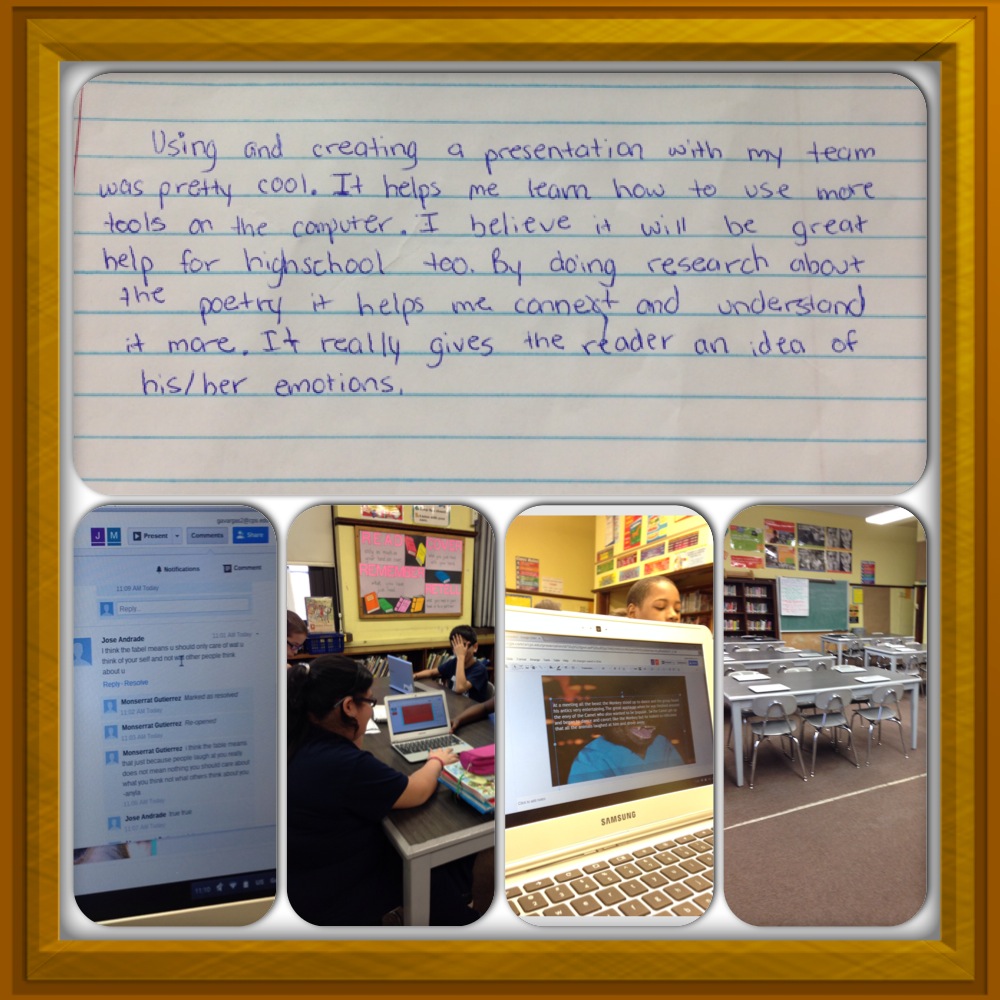
Fables, Google Apps and Time, Rosalie Buenrostro, Librarian, Taylor Elementary

photo (1).JPGMy students had a silent class of interpreting a fable and creating a slideshow using Google apps.  They could only communicate by sharing within their group using the comments section of Google.  They had to interpret a fable, download an image to communicate the meaning of the fable, and create a slideshow to present to the class.  They found they enjoyed the CCSS learning process while using technology.  I heard many times “how cool library is” or “library is now my favorite class.”  I found how much easier it is to teach with an intrigued group of students.  

I can’t believe it has been two years since I applied for the REVITAL grant.  I wanted to be a recipient so badly but at the same time I was afraid I was going to be chosen.  I was afraid because I was not familiar with the iPads or the Chromebooks and knew I had to commit to two years of learning, sharing and applying new knowledge and apps.  I can not say I am extremely proficient in either today, but I can confidently say I am not afraid to try new apps or further explore what CPS has available for us.

I do not learn alone.  I have had help from Colleen and Lisa whenever I needed it.  They have made this grant commitment a step by step process that consists of involvement, communication, application and exploration.  Posting with the other recipients has been a saving grace many times.  You have a question, you post it and your comrades answer it or direct you to an answer.  Collaboration is awesome.  Students are also more knowledgeable than we may think.  Many times my student’s and I have had learning experiences with the computers.  They have helped me through many issues and have become group leaders and helpers in the process.

If you have an opportunity for a grant like the REVITAL do not be afraid.  Take the chance and be rewarded with great technology, wonderful advisors and support from new friends that are in the profession of teaching just as you are.  

Researching with Google Cultural Institute and Creating with Build with Chrome, by Katherine Hlousek, Librarian, Emiliano Zapata Academy

While searching for Chrome apps and extensions to explore with students, I discovered Build with Chrome. Students love Legos and Build with Chrome provided the perfect opportunity to incorporate and blend research with creativity, making, and technology in the library.
During this unit fourth grade students explored two resources from Google: Google Cultural Institute and Build with Chrome. Google Cultural Institute is a “digital platform that aims to make world culture available to anyone, anywhere. It brings together millions of artifacts and includes collections from all kinds of museums, historical foundations, and education-focused organizations.” There are a wide variety of collections to explore on Google Cultural Institute, such as World Wonders. Also, if needed, there are brief videos of how to use the Google Cultural Institute site as well as additional information about the Google Cultural Institute.
Students explored several world landmarks using Google Cultural Institute before selecting a building or architect to research further. After selecting a building, students then used Encyclopedia Britannica and the Gale research databases to seek answers to research questions. Students organized their research using a graphic organizer that was shared with students via Google Classroom. Once students completed their research, students advanced to the next portion of the unit, designing a building or structure using Build with Chrome.
Build with Chrome allows students to virtually design, build, and create using 3D LEGOs. Build with Chrome is web-based and works on desktop or mobile devices using the Chrome browser. Within Build with Chrome, students can select an exact location on a Google Map to build their virtual LEGO creation. When building, students can select from a variety of Lego bricks, change the color, and rotate the bricks or the entire board.

Before building, I shared this short video from Build with Chrome with students. Also, Build Academy provides a number of tutorials and challenges to introduce students to features within the Build with Chrome creation site. Depending on the class, some students might jump right into building, while it might be helpful for other students to explore the tutorials on Build Academy to become familiar with the various building tools. The tutorials begin at a basic level, such as learning how to rotate the baseplate, and become more complex to develop one’s master builder skills.
In order to save one’s final project on Build with Chrome, one has to log in using a Google+ account. An option going forward would be to have students use a general library Gmail account to save and share projects. Finished work that has been shared using Google+ appears on a Build with Chrome Google Map. Zapata students took a screenshot in order to share their final creation with the class.
This project allowed students to explore, imagine, research, and create using the library Chromebooks.  


Fun with Chromebooks Peggy Rux, Pasteur Elementary School

As we reach the end of our two year REVITAL grant. I want to say how grateful I am to have been a part of such a wonderful experience. One of the main reasons I applied for this grant was to be able to become more competent using technology with my students and become a leader in technology integration at my school.  While I believe I have accomplished these goals, I still have a long way to go!


Students at all levels are very comfortable using the iPads. Their favorite app would be Toontastic.  Students love creating cartoons!! This year I had to teach Health classes as well as Media and my students were concerned they would not be able to use the app. No worries, I just had them create cartoons about a health topic! Another popular app with my classes is Stack the States.  Great trivia questions! The older students really like Educreations for presentations.  


While all my students can use the iPads with ease, I feel my older students really like using the Chromebooks more. They like the fact that it works more like a laptop, with its larger screen and keyboard. They like to practice their keyboarding skills using the website typing.com. The web based format of Brainpop is also more popular with my students. It offers much more then the App version.  They have been collaboration using Google Drive which is something I hope to do more with my younger students next year.

Through this grant I have gained a lot of knowledge that I have shared with my fellow teachers. Together we have planned some great lessons. Students are using their media time completing research, creating slideshows and collaborating on Drive. I hope to continue this next year and have already started planning with our Instructional Leadership Team on implementing more technology into our lessons. I want to thank Colleen and Lisa for all their support. I also want to say a big thank you to all of my fellow grant recipients for all the great links, lesson plans and collaboration along the way!

Using Google Slides, Amy Chiu, Corkery Elementary School

We are so pleased to have our third quarter under our belts and are ready to venture on into our last quarter.  This quarter we have endeavored many projects using our chromebooks and iPads.  Our 8th graders started a research project on a President in February (President’s month).  Through this project, we enjoyed implementing apps, trying new extensions and utilizing bookmarks with our chromebooks.   

For the first slide of the Google app “Slide” presentation, students created a collage from ABCya word cloud with the president’s name along with 7-10 adjectives that describe their chosen president.  I played around with having them use the Word Cloud extension  but found the results too random.  I wanted the students to be thoughtful and precise with the words in their collage.  I ended up having the students going straight to the ABCya site and customizing a page that contained their chosen president’s name along with 7-10 adjectives to describe him, then taking a screenshot of the collage and dragging it to their presentation.  

Easybib App was a resource all students had access to use as an app.  It was helpful to several of them as they did the web resource portion of their research.  We used easybib before we had the chromebooks so they were already familiar with it.  I think they liked the convenience of having it as an app.  

Students also enjoyed having our website on their cps.edu bookmark.  All they had to do was click on the cps.edu bookmarks on the bookmark bar and then choose Corkery Library on the dropdown menu.  That made it easier for them to access our Corkery Library Website that links them to our Databases and our Library Catalog, which they also used for their research.  

We are glad to have that project done and all we have learned through it and ready to venture on into new this for this Spring!!!!

Thursday, April 16, 2015

Blogging in Spanish, Lindsey Mangurten, Lincoln Park High School

For this lesson I had the Spanish classes creating blogs about festivals in Spanish Speaking Countries. I used kidblog for the students to create their blogs. I really like kidblog for the ease for the class and for the teacher. Instead of the students emailing the blog link to the teacher, all of the web links are in one place and the students can browse and comment on each others pages. The students log in to their teachers pages, select their class period and find their own accounts.


Before the class came in I got the class roster from the teacher and created accounts for all of the students. I used the password, ‘password’ for everyone. This can only work if you trust your students not to go on someone elses page and do something inappropriate. In the past I did have a student erase another students work out of malice and I was not able to prove who had done it. If you don’t trust the students you can create more difficult passwords but for ease of time I used “password”. The teacher and I discussed this prior to beginning and since it was an upper level Junior/Senior class we felt that we could trust the kids to remain on their own pages exclusively.  


I spent about 15 minutes in the beginning of the period demonstrating how to log in, upload photos, and add and edit text. The platform is very user friendly and the students were quickly able to start adding in their own information.


IMG_2625 (1).JPGBecause it was a spanish class the students were required to write in Spanish. In order to do that, the students typed in google docs and were going to copy/paste the text into kidblog. I also showed the students how to add accents and tildes and other spanish markings using google docs. The students were able to select
-insert
-special characters
-draw what they were looking for
-select the proper letter and accent mark

We found the drawing tool to be the easiest to use since the font was so small for some of the accents to truly decipher what they were. Once the students had completed typing in Spanish they copy/pasted their final product into kidblog before publishing their work. I highly recommend kidblog for blog creation in class. It is private, free and user friendly.

Monday, March 30, 2015

2nd graders and Chromebooks By Viviane Kraus, Franklin Fine Arts Academy

The second grade teacher and I decided to collaborate on an adjective lesson.  The teacher wanted to have students create a portrait surrounded  with adjectives describing themselves.   

The students learned about adjectives in the classroom and brainstormed adjectives that described themselves and wrote their adjectives on paper. When students came to the weekly library period, the students brought their adjective lists.
Second graders were already taught  how to access their Google Drives and how to check email in technology class.  This, however,  was their first time using Google Docs.  
I made sure that I had a copy of usernames and passwords just in case some students forgot theirs.  
First, I gave the students a quick tutorial about how to open a Chromebook and access the internet using the Browse as Guest tab and then searching for the Google CPS website in the search bar.  
FullSizeRender.jpgOnce the students were all logged on, I modeled how to create a Google Doc and how to change text font, text size and text color.  I also asked the students to help each other at their tables since we are learning something brand new.  

I then went through each step one at a time again and walked around to support students when they got stuck.  This seemed to help.  Once the students were on their Google Doc they started typing and manipulating the text by changing the font, text size and color.  By this time, the 40 minute period was almost over.  I explained how Google Drive saves their documents automatically and taught them how to name their new Google Doc.  

For the next library lesson, students had to be reminded to access their document, but seemed to be able to get started pretty quickly.  I made sure to be available to troubleshoot, but most of the students were able to finish during that library class period.  I was impressed with the enthusiasm and work ethic of the second grade students.

“We learned how to change the font.” Sophie S.
“I love using the Chromebooks, it makes me feel smart.”  Mekhi K.